When you are away from the office—whether visiting clients across town, working from a hotel, or traveling internationally—needing a critical file, accounting software, or local database on your office workstation can bring work to a standstill.
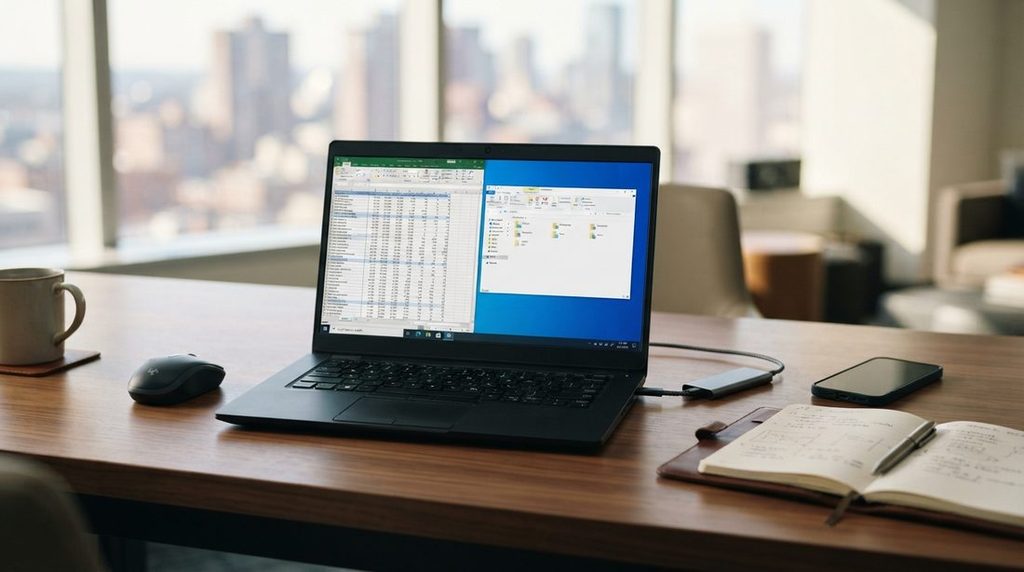
Setting up dependable remote access shouldn’t require complex enterprise firewalls or risking account lockouts on free consumer tools. Here is how to engineer a reliable, encrypted connection back to your office desktop so you can work from anywhere without interruption.
The Problem: Why Free Remote Tools and Public Wi-Fi Fail Business Travelers
Many small business owners try to solve remote access by installing free consumer tools like AnyDesk or TeamViewer on their office PC before a trip. This creates two immediate operational headaches:
- Commercial Use Blocks: Free remote desktop tools monitor connection patterns and frequently flag business usage. Getting locked out of your office desktop mid-trip because a free tool suddenly demands an expensive corporate license is a common—and completely avoidable—crisis.
- Security & Sleep Lockouts: Relying on unsecured remote protocols exposes your office network to attacks, while default Windows sleep settings often put the host computer to sleep after an hour of inactivity—leaving your PC unreachable until someone physically walks into the office to wake it up.
The Solution: Splashtop Remote Access Pro
For small businesses and traveling professionals, Splashtop Remote Access Pro ($99/year billed directly by Splashtop) provides a dedicated, commercially compliant remote desktop environment without the cost or complexity of hardware VPN appliances.
- Encrypted & Direct: Sessions are protected with TLS and 256-bit AES encryption, establishing a fast, responsive connection directly to your office workstation.
- Multi-Monitor Support: Easily view and switch between dual or triple office monitors from your laptop screen while traveling.
- Remote Printing: Print documents directly from your office computer to whatever local printer is connected to your travel laptop—no file transfers required.
Key Features & Best Practices for Unattended Travel Access
To ensure your office computer stays accessible throughout your trip, a proper deployment goes beyond simply installing software:
1. What Financial Websites & Apps See (Your Local Office IP Only)
When you connect via Splashtop and use the web browser or accounting software on your office desktop, all internet traffic originates directly from your office router. Any bank, financial portal, or business application you access sees only your familiar office IP address—never your hotel Wi-Fi, airport hotspot, or international IP. This eliminates frustrating two-factor security lockouts and fraud blocks when managing business finances on the road.
2. Connect from Any Travel Device
Your Splashtop subscription is not locked to a single travel computer. You can install the Splashtop Business client on your primary travel laptop, an iPad or Android tablet, or your smartphone, giving you secure access to your full office workstation from anywhere you have an internet connection.
3. Hardened Windows Power & Sleep Settings
Remote access is useless if your office computer goes to sleep. Before you leave, Windows power policies must be configured so sleep and hibernate are completely disabled when plugged in, ensuring the network card and Splashtop background service stay active 24/7. Once configured, always test unattended access from an external connection (such as a cellular hotspot) prior to departure.
4. Optional Hardware Failsafe (Smart Plug + BIOS Power-On)
Even well-maintained computers can occasionally freeze from a background Windows update while no one is in the office. To guarantee you can recover without an emergency trip back to the building, pair a BIOS setting (Restore on AC Power Loss set to Power On) with a TP-Link Tapo P125M Smart Plug.
As long as your office has a 2.4 GHz Wi-Fi signal at the desk and the Tapo app is set up on your phone, you can remotely toggle power to the smart plug off and back on—forcing a clean cold reboot of your frozen PC from anywhere in the world.
Frequently Asked Questions: Splashtop Business Pro
Do I need to buy a complex VPN router for Splashtop to work?
No. Splashtop establishes a secure, outbound encrypted tunnel directly from your office workstation. You do not need to open risky firewall ports on your office router or purchase expensive hardware VPN concentrators.
Can I print invoices or contracts while traveling?
Yes. Splashtop Pro includes built-in remote printing, allowing you to hit “Print” inside QuickBooks, Word, or your browser on your office PC and have the physical page print out on your hotel or home printer.
What if my office PC loses power briefly during a storm?
When your computer’s BIOS is configured to automatically power back on after an AC power loss, your workstation will boot right back up to the Windows login screen as soon as electricity returns, allowing Splashtop to reconnect automatically.
Never Worry About Office Access While Traveling Again
Whether you need a single workstation configured before an upcoming trip or unattended remote access deployed across your entire team, contact Mike’s Computer Tech to have Splashtop professionally installed and tested remotely.